Before you start
- A topic, intended audience and one action you want the reader to take.
- Exported PNG, JPG or WebP slides, with up to ten slides per Stash preview. This is the tool’s limit, not a claim about Instagram’s current limit.
The workflow
- 01
Write the promise and outline
Choose one useful takeaway. For the workshop example: “Three ways to start a creative habit this week.” Ask AI for a five-slide outline with one idea per slide and a final action. Verify factual claims and remove filler before designing. Start from the reader’s problem rather than a generic list of motivational tips.
- 02
Design an editable master
Build the slides in Canva or Figma using consistent margins, type and hierarchy. Keep text comfortably readable in the phone context. Use your own or appropriately licensed assets. Export the finished slides in reading order and retain the native file for future edits; image exports are review copies.
- 03
Preview the sequence and caption
Upload the slides to the Instagram preview, arrange their order, choose the frame and fit mode, and add the caption. Swipe through as a reader would. Check whether each slide follows the previous one, whether the cover promises what the content delivers and whether the caption complements rather than contradicts the slides.
- 04
Request slide-specific feedback
Create a review link and ask the reviewer to identify the slide and issue. For example: “On slide 3, is the exercise clear enough to try?” Include the caption in the review question. A week of content can use a separate preview for each post plus a short index brief listing its intended date; this is not a scheduling calendar.
- 05
Revise, export and publish elsewhere
Make the edits in the original design file, export the revised slides and create a new review snapshot if needed. Download the ordered images and caption. Check the real Instagram composer, account options, accessibility text and final crop before publishing. The preview is a planning approximation and does not post to Instagram.
WORKED EXAMPLE
A five-slide creative habit carousel
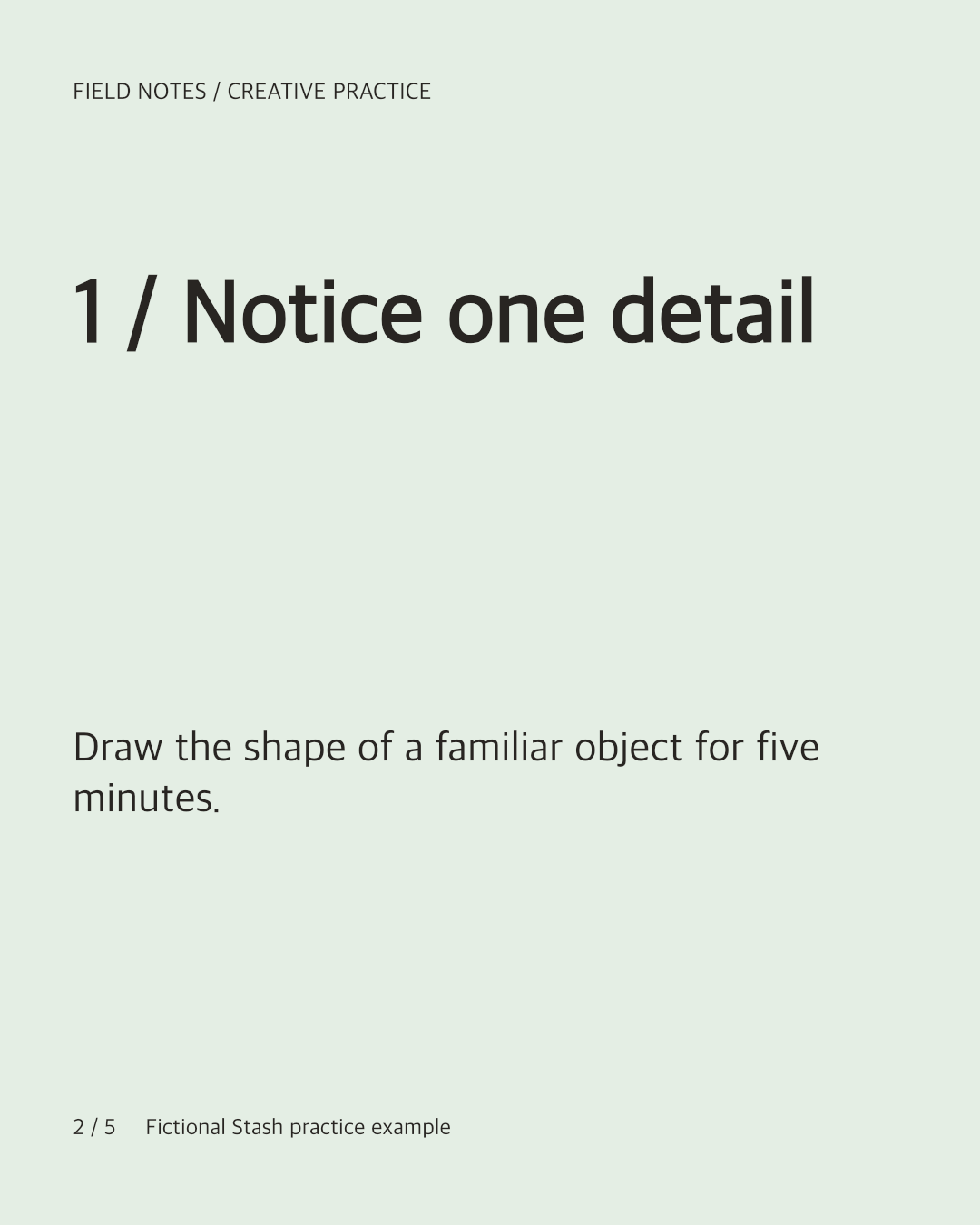
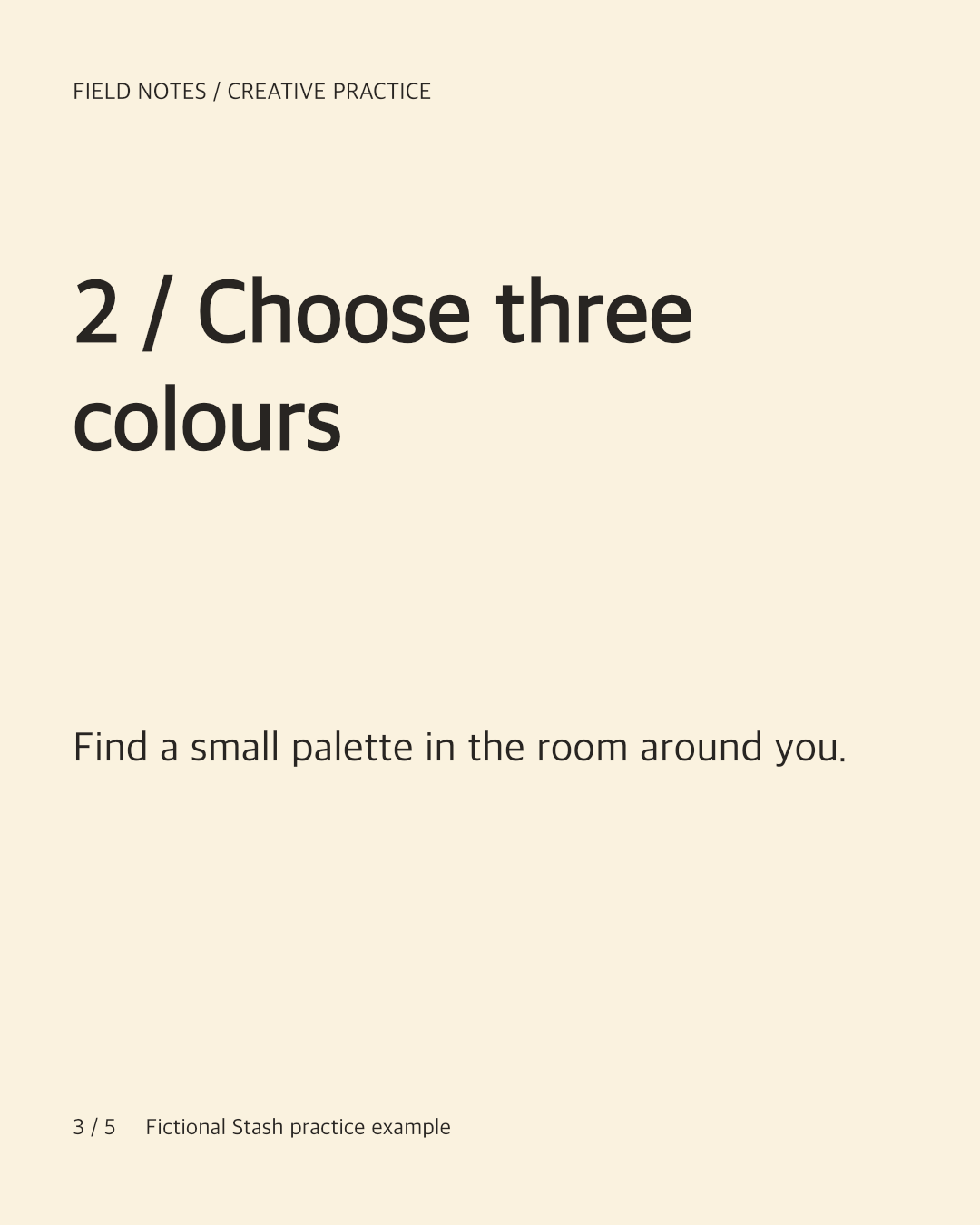
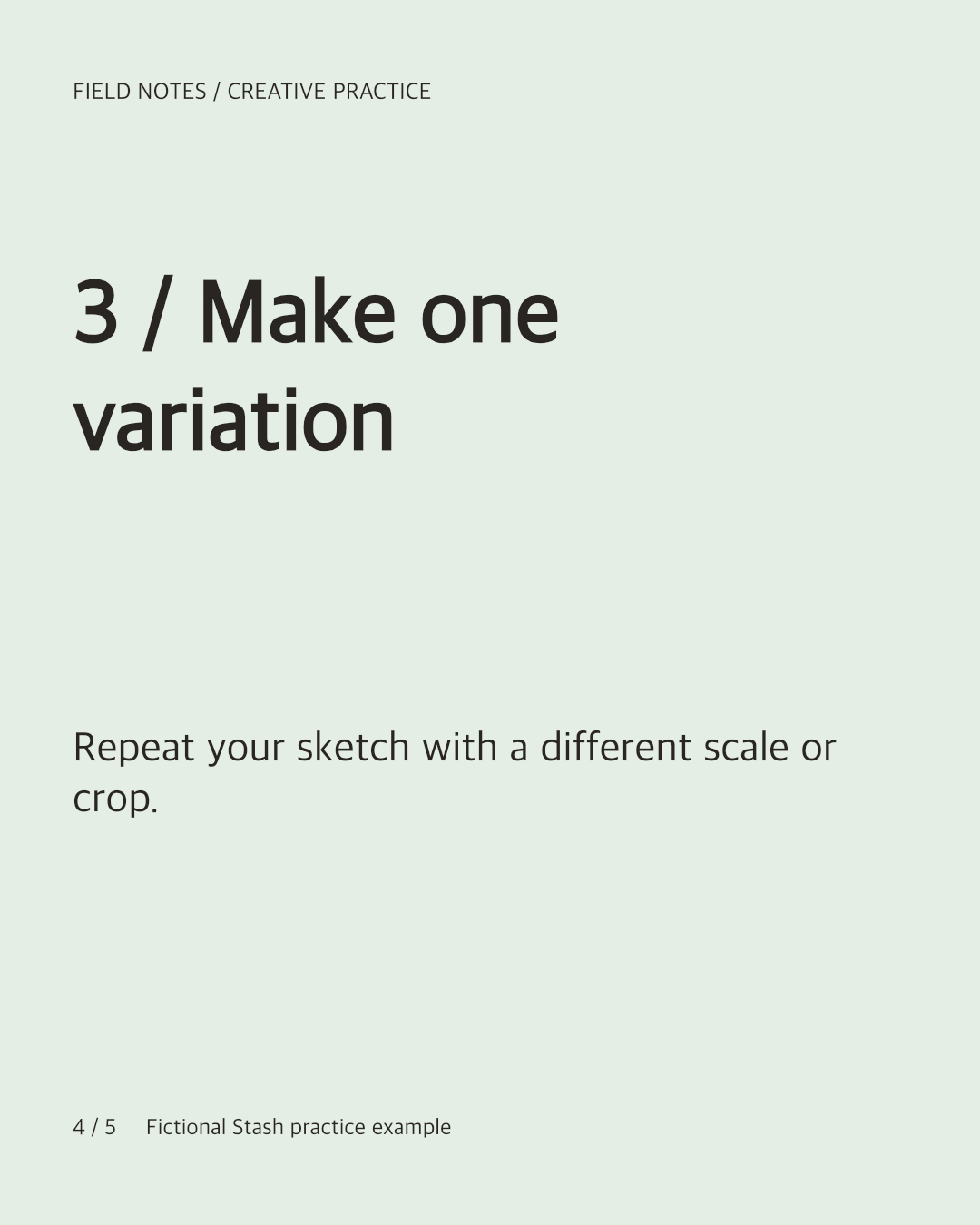
The original downloadable slides are a fictional workshop campaign: a promise, three small exercises and a next step. Use them to try ordering and review.
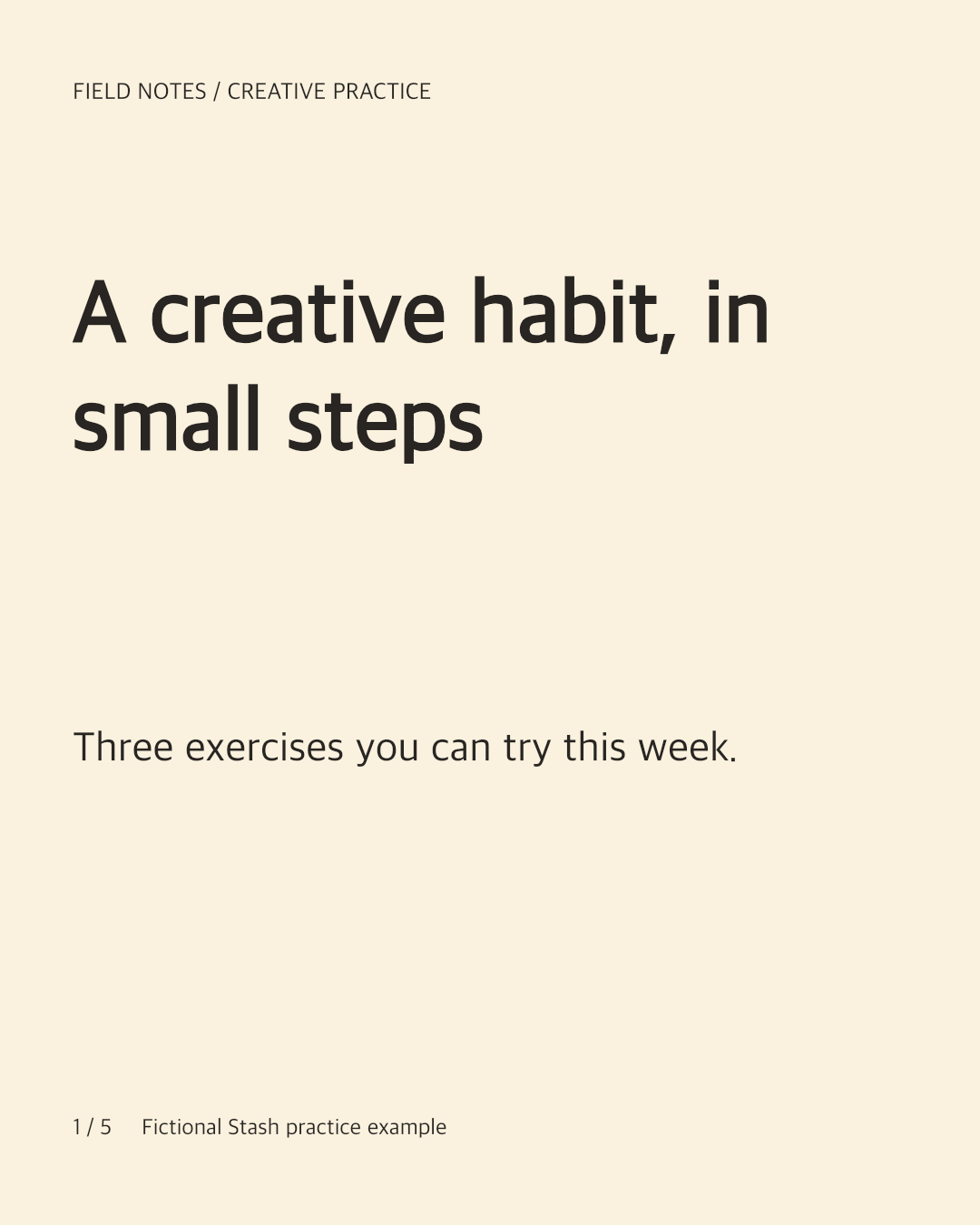
Starting point
A reviewer says “too much text” without identifying the slide, while caption feedback arrives in another chat.
A clearer result
The review request asks for one comment per slide and a separate check that the caption supports the final action. Slide 3 is shortened in the original design tool.
Check the result
- The slide order tells one coherent story.
- Text is readable in the phone preview.
- The caption and last slide ask for the same next action.
Original practice files
Fictional examples made for these guides. Download them to try the workflow with your own tools.
A prompt you can use
Replace the bracketed fields with your project details. Check what the AI can access before requesting changes.
Create a five-slide carousel outline for [audience] about [topic]. One useful idea per slide. Slide 1 promises a specific takeaway; slides 2–4 teach it; slide 5 gives one next action. Include a short caption and flag any factual claims to verify. Keep this as editable copy, not a claim that you published or edited my Canva file.Download the brief, prompt and checklist ↓
Questions & answers
How do I present a week of social content to a client?
Create a review preview for each post and a short index with the intended day, audience and decision needed. Keep scheduling and publication in your normal social platform workflow.
How do I collect feedback on visuals and captions together?
Include the caption in the Instagram preview and ask reviewers to check it alongside the slides. Use slide-specific comments for visual changes and identify caption changes explicitly in the review brief.
How do I create and review an Instagram carousel with AI and Canva?
Outline the story with AI, design editable slides in Canva, export the images and preview them with the caption. Collect feedback, revise the original design and publish manually after checking the real composer.
How do I review carousel storytelling, order and readability before publishing?
Swipe from the cover to the last slide at phone scale. Check the promise, transitions, text density and final action. Ask someone unfamiliar with the draft to explain the takeaway back to you.
Keep in mind
- No Instagram login, publishing or scheduling is provided. Platform layout and account capabilities can differ from the preview.
- The preview holds a fixed snapshot. Changes to Canva files do not update an existing review.
Official references
Check the current provider instructions for setup and access requirements.
Put it into practice.
Start with the example or bring a small project of your own.
Preview a carousel ↗