Before you start
- A design you can export and permission to share its contents.
- A decision to request, such as choosing a direction or checking hierarchy.
The workflow
- 01
Choose native sharing or a review copy
If your reviewers already work in Canva or Figma and need live access to the design, their native sharing controls may be the simplest option. Use an export when the team spans several tools or you want feedback on a fixed snapshot. A screenshot review sacrifices editable layers and live synchronization in exchange for a simple, consistent copy.
- 02
Prepare the export
Export the relevant frame or page as PNG, JPG or WebP. Crop to the area being reviewed while keeping enough surrounding context to explain the decision. Remove private names, unpublished numbers and unrelated client material. Keep the original file and record the export date or revision in your own brief.
- 03
State what is open for feedback
Open the annotation tool and upload the image. Add a short note such as “Direction review: hierarchy and tone; copy is provisional”. Ask a specific question and list the decisions already made. This helps reviewers avoid treating unfinished copy or placeholder photography as the final deliverable.
- 04
Share the fixed copy
Create a review link and open it to check the image. Send the context along with the link through your normal channel. The tool creates a private review copy with an invitation for comments. Anyone holding a valid invitation can use it within its limits, so share deliberately.
- 05
Revise the original and refresh the review
Read the comments, agree the changes and edit the original Canva/Figma document. Export the revised design and create a fresh review snapshot. Tell reviewers which link is current. The old review link does not silently update when you change the source design.
WORKED EXAMPLE
A workshop poster direction review
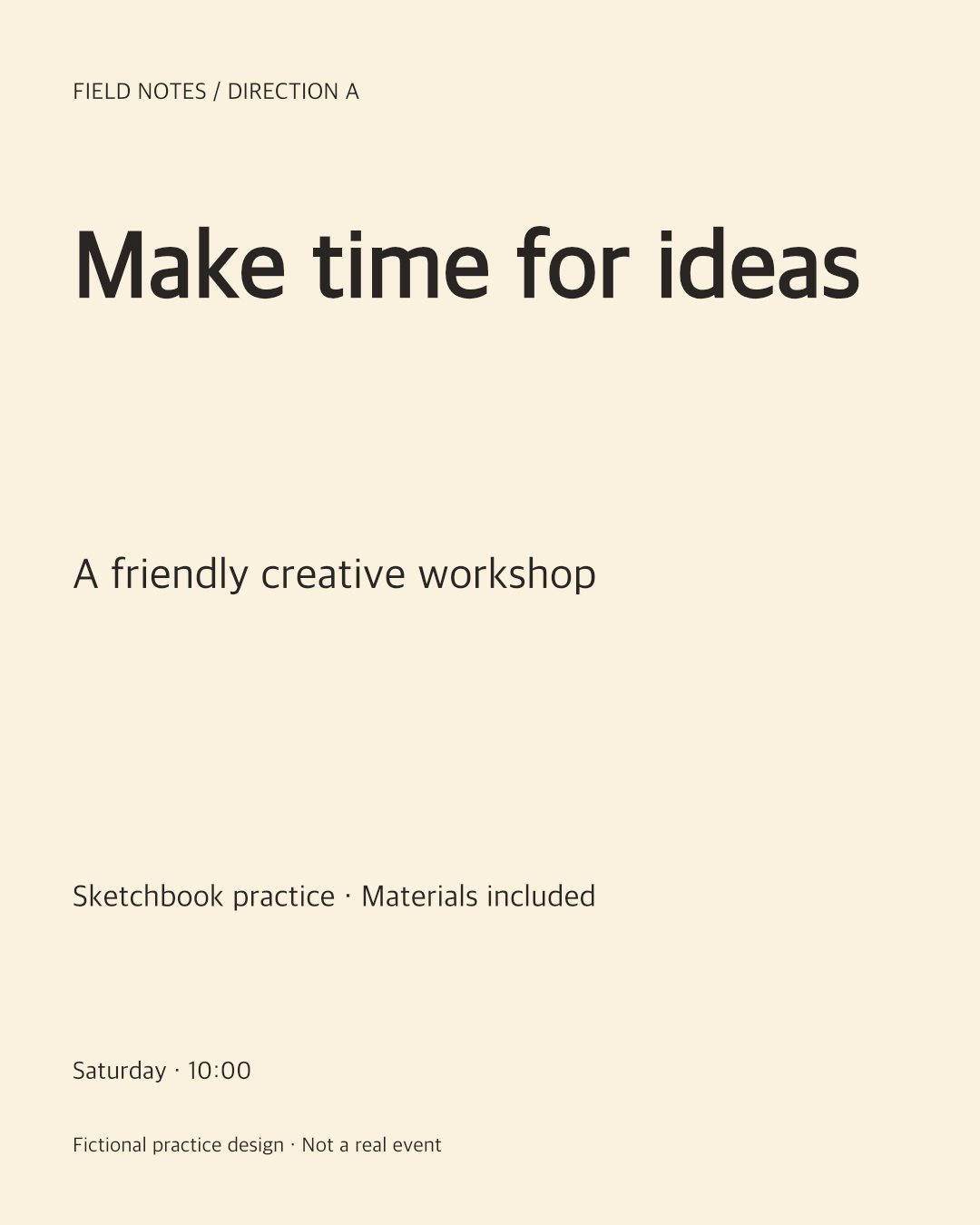
Export a fictional workshop poster and ask the client to focus on hierarchy and the booking message.
Starting point
“Thoughts?” alongside an unlabeled image leads to comments about copy, colour and layout with no clear decision.
A clearer result
“Draft 2: is the workshop title readable before the date? The illustration is a placeholder. Please comment on hierarchy by Thursday.”
Check the result
- The reviewer sees only the intended copy.
- The feedback points to a visible detail.
- The final edit is made in the original design file.
Original practice files
Fictional examples made for these guides. Download them to try the workflow with your own tools.
A prompt you can use
Replace the bracketed fields with your project details. Check what the AI can access before requesting changes.
Help me write a review brief for this exported design. Audience: [audience]. Goal: [goal]. Fixed decisions: [list]. Open decisions: [list]. Draft status: [what is unfinished]. Give me three specific feedback questions and a short message to accompany the review link. Do not assume this image contains editable Canva or Figma layers.Download the brief, prompt and checklist ↓
Questions & answers
How do I collect feedback when my team uses different design and AI tools?
Use one review location for exported copies, and keep each original in its authoring tool. Give every review a clear version and owner. Stash does not continuously synchronize native Canva/Figma documents.
How do I get feedback on Canva or Figma designs without giving edit access?
Either use native view/comment permissions or export a review copy and share it through Stash. Sharing a PNG copy does not grant access to the editable source file.
How do I present branding concepts to get useful client feedback?
Present each concept against the same brief: audience, intended tone, key choices and tradeoffs. Ask which direction serves the brief, then gather detailed comments on the chosen direction.
How do I present unfinished work without it being mistaken for final?
Label the draft stage and list what is provisional, what is fixed and what decision you need. Include that context in the review brief; do not rely on reviewers inferring readiness from visual polish.
Keep in mind
- The image tools accept PNG, JPG and WebP, not native Canva/Figma files or PDF imports.
- Exporting flattens the design. This workflow does not transfer editable layers or provide live two-way synchronization.
Official references
Check the current provider instructions for setup and access requirements.
Put it into practice.
Start with the example or bring a small project of your own.
Annotate a review copy ↗