Before you start
- ChatGPT and Claude accounts that permit the required custom connection; workspace restrictions can apply.
- The same Stash profile or appropriate access to the same work in each connection.
- A small HTML project without backend dependencies for your first attempt.
Connect your AI to the work
Open Stash and choose Connect your AI tools. Authorize your client, then check that it can read the intended work before asking it to edit. The connection uses MCP, a way for AI tools to read and update work in another service.
For a new publication, explicitly ask for private access. New MCP artifacts otherwise allow public editing. Your selected space is the default publishing destination, not a limit on everything the connection can access.
See the connection and handoff workflow. Client availability and workspace permissions can vary.
The workflow
- 01
Connect each client separately
Open Stash and choose Connect your AI tools. The remote server address is https://runstash.dev/api/mcp. Follow the current official setup instructions linked below for your client and complete OAuth. The clients may use different names for plugins, apps or connectors. Check that the connection is enabled in the actual conversation; opening a setup screen alone does not connect it.
- 02
Check access before editing
Ask each client to list the accessible work and read the title of the same sample artifact. If one cannot find it, check which Stash browser profile authorized the connection and whether that profile can access the work. A selected publishing space is a destination preference, not a restriction on all data the connection can access. Read the consent screen before authorizing.
- 03
Create a small private baseline
Ask the first AI to publish the supplied workshop HTML as a private Stash artifact. Explicitly request private access because new MCP publications otherwise default to public editing. Open the returned link, check the rendered page and note the work and version identifiers. Do not start with confidential material while validating the connection.
- 04
Hand over a concrete brief
In the second client, provide the work link, baseline version, audience, approved choices and one requested change. Ask it to read the existing source and report what it found before editing. It should update the same work with a new version rather than recreate a similar page from its recollection of your description.
- 05
Verify continuity in both directions
Open the new version, compare the requested change and ask the first client to read it back. A successful handoff means both clients can retrieve the same work and the new version, not simply generate similar outputs. If the connection is unavailable, export the source and a brief for manual transfer; that copy will not stay synchronized automatically.
WORKED EXAMPLE
One page, two bounded edits
Use the Field Notes workshop HTML. These are instructions for your own connection check, not a claim that every account or workspace has been tested.
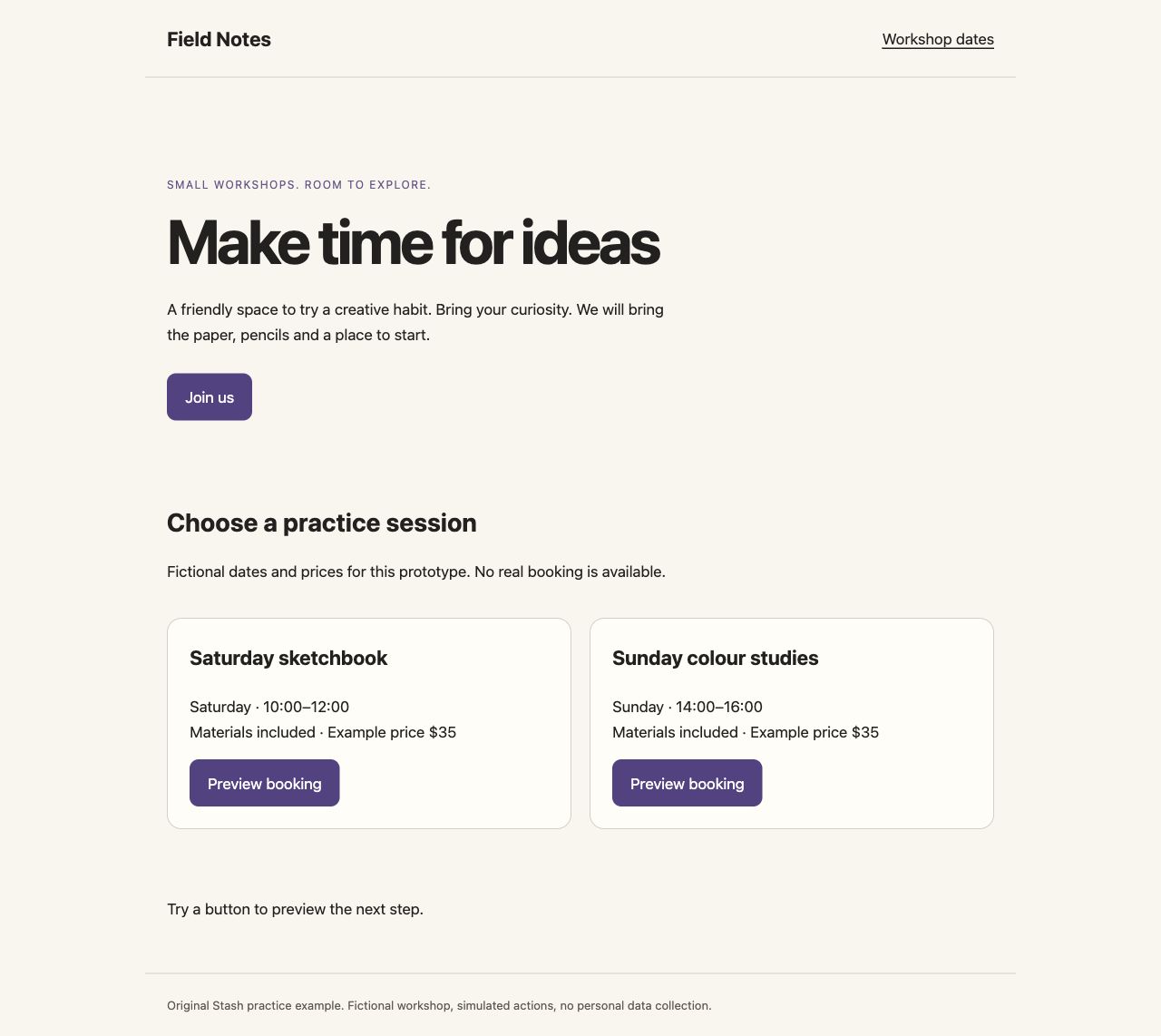
Starting point
Client A publishes the baseline and records its version. The heading is “Make time for ideas”.
A clearer result
Client B reads that version, changes only the heading to “Book your next creative workshop”, and returns a new version link. Client A reads the new heading back.
Check the result
- Both clients report the same work identifier.
- A new version exists and the previous one is still available.
- The heading changed, while dates and pricing did not.
Original practice files
Fictional examples made for these guides. Download them to try the workflow with your own tools.
A prompt you can use
Replace the bracketed fields with your project details. Check what the AI can access before requesting changes.
Use the connected Stash tools to read [work URL], version [baseline ID]. Report the current heading and summarize the source before editing. Change only the heading to “Book your next creative workshop”. Append a new version to this same work. Preserve access, other content and the shared pin. Return the work ID, new version ID and link. If you cannot read the work, stop and explain the access problem instead of recreating it.Download the brief, prompt and checklist ↓
Questions & answers
How do I continue the same HTML project in ChatGPT and Claude?
Connect both clients separately to Stash, verify that each can read the same artifact, then ask the second client to append a bounded revision. Availability depends on your client and workspace settings. Source and recorded comments are shared; chat history is not automatically migrated.
How do I give a new AI session the latest work, feedback and constraints?
Keep a handoff brief with the work link, version, audience, constraints, decisions and next task. Ask the new session to read both the brief and source and confirm them before changing anything.
How do I use one AI for drafting and another for critique?
Give the critic a specific version and an evaluation checklist. Have it propose changes without publishing them. Once you approve a short list, send that list to the drafting client and review its next version.
How do I prepare a handoff when an AI conversation gets too long?
Before leaving the conversation, write a concise handoff covering the current result, decisions, rejected directions, remaining problems and source links. Review the summary for omissions, then use it with the saved artifact in the new session.
Keep in mind
- This workflow shares artifact context. It does not migrate private chats, model memory or native Canva/Figma layers.
- A connection must be authorized and enabled in each client. If a required control is unavailable, consult your workspace administrator or use a manual source handoff.
Official references
Check the current provider instructions for setup and access requirements.
Put it into practice.
Start with the example or bring a small project of your own.
Open Stash to connect your tools ↗